What this version is for
This MetaTrader 4 page is for traders who want the logic in source form rather than a packaged NinjaTrader import. It is best used as a transparent starting point that can be reviewed, compiled, and adjusted inside your own workspace.
That makes this page useful for more than copying code. It also helps you compare how the same trading idea is expressed across platforms, which parts of the workflow are universal, and which parts are specific to MetaTrader 4. If you are moving between platforms or validating whether a concept ports cleanly, source pages like this are often more educational than packaged files alone.
Where it fits
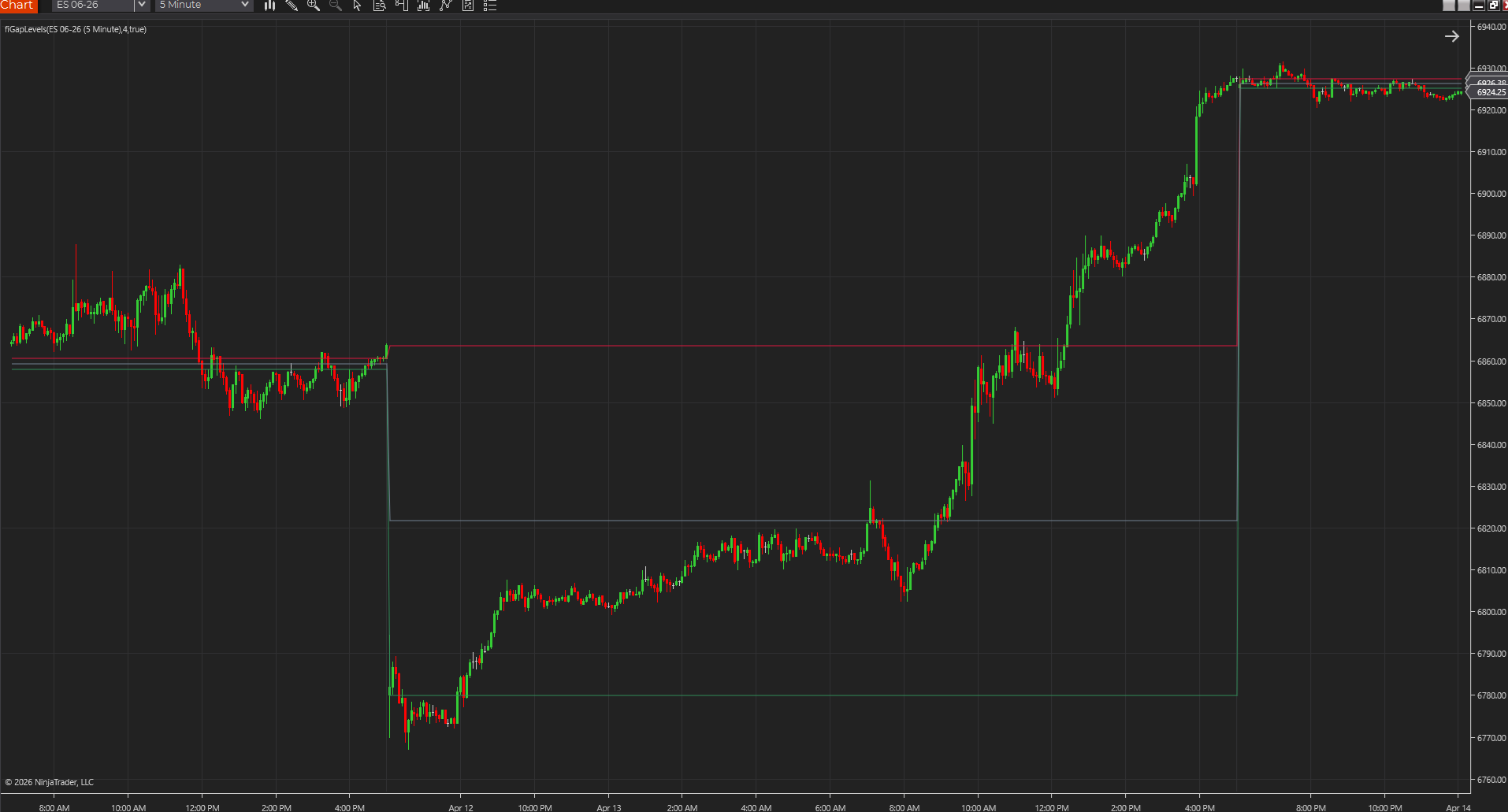
Gap Levels highlights the price space between the new session open and the prior close when the opening move is large enough to matter. It is useful when you want gap context for fills, rejections, and trend continuation decisions.
In the broader library, this source page sits somewhere between a product page and a guide. The main indicator page explains the tool at a higher level, while this page focuses on implementation and adaptation. Traders who already know they want gap levels logic on MetaTrader 4 usually get the most value here because they can move from concept to code without leaving the site.
What to verify first
- Confirm the default inputs make sense for your market and timeframe.
- Compile the script before changing anything else.
- Compare the plotted behavior on a simple chart before adding alerts or automation.
- Treat the script as chart context, not as a promise of trading performance.
What usually needs adaptation on MetaTrader 4
MT4 examples tend to look simple until broker feeds, symbol suffixes, and tick-volume behavior start changing what the script actually means on your chart. A clean compile inside MetaEditor is only the beginning. The real check is whether the plotted output, buffer values, and applied-price logic still match the trading idea once the script is attached to your actual instrument.
MetaTrader 4 verification checklist
- Compile in MetaEditor, then confirm the indicator lands in the correct folder and appears in Navigator.
- Use the Data Window and a clean chart to confirm values instead of assuming a successful compile means the logic is right.
- Watch broker symbol suffixes, applied-price choices, and tick-volume assumptions before trusting the output.
- Validate the output on the chart type you actually trade, because bar construction can change the whole story.
- Compare the plotted levels to the raw swing or session prices so you know what is derived and what is directly projected.
That verification step matters because code that compiles is not automatically code that behaves the way you expect. Chart type, bar indexing, session settings, alert behavior, and plotting defaults can all change the reading of an otherwise simple study. Taking a few minutes to validate behavior on a clean chart is almost always cheaper than debugging assumptions after the script is already part of a larger workspace.
Source code
// Gap Levels
// FreeIndicators.com source example for MetaTrader 4.
#property indicator_chart_window
#property indicator_buffers 3
#property indicator_color1 DodgerBlue
#property indicator_color2 Crimson
#property indicator_color3 SeaGreen

double Buffer1[];
double Buffer2[];
double Buffer3[];

int init() {
   SetIndexBuffer(0, Buffer1);
   SetIndexBuffer(1, Buffer2);
   SetIndexBuffer(2, Buffer3);
   return(0);
}

int start() {
   int counted = IndicatorCounted();
   int limit = Bars - counted - 1;
   double minimumTicks = 4.0 * Point;
   for(int i = limit; i >= 0; i--) {
      double priorClose = Close[i + 1];
      double sessionOpen = Open[i];
      if(MathAbs(sessionOpen - priorClose) >= minimumTicks) {
         Buffer1[i] = MathMax(sessionOpen, priorClose);
         Buffer2[i] = MathMin(sessionOpen, priorClose);
         Buffer3[i] = (Buffer1[i] + Buffer2[i]) / 2.0;
      }
   }
   return(0);
}
Settings and tradeoffs
Defines how large the opening gap must be before it is drawn.
Displays the midpoint of the active gap.
Controls the colors used for the gap boundaries and midpoint.
Settings are where a script usually shifts from generic example to something personal and useful. A default input that behaves well on one market may feel too slow, too fast, too wide, or too noisy somewhere else. That does not mean the study is wrong. It usually means the script still needs to be matched to the instrument, the chart type, and the decision style you actually care about.
Limitations
- It depends on markets and sessions where opening gaps are meaningful.
- Small gaps can create noise if the minimum threshold is too low.
- The indicator maps the gap but does not tell you whether it will fill.
Those limitations are not just caveats for the sake of caution. They are often the exact reasons a study feels helpful on one chart and disappointing on another. A clean source page should tell you where the logic is likely to travel well, where it needs adaptation, and where it should be treated as context rather than as an automated answer. That is especially important when the same concept is being translated from one trading platform to another.
Before you automate anything
Even when a script looks straightforward, it is worth slowing down before attaching alerts, automation, or trade execution logic to it. Indicator code often carries assumptions about confirmed bars, current-bar updates, session handling, or how signals should be interpreted in context. The safest progression is to review the code, compile it, observe it on a chart, compare it to the main product page, and only then decide whether it deserves a larger role in your workflow.
Think of this page as a working reference rather than a promise. It gives you a transparent starting point for MetaTrader 4, a live chart capture tied to the same idea, and a route back to the broader product and guide system if you want more context before making changes.